BitLocker's Little Secrets: The Undocumented FVE API
The purpose of the BitLocker check I implemented in PrivescCheck is to determine whether the system drive is protected, and if so, whether two-factor authentication is configured (typically TPM+PIN). You’d think that it’s a simple thing to do, but it is not, at least without administrator rights.
Known Techniques for Getting BitLocker Status
All the official or publicly documented methods for enumerating the configuration of BitLocker require administrative privileges. Whichever solution you choose, you’ll be faced with an “access denied” error if you are a low privilege user.
The most popular tool is the built-in manage-bde utility.
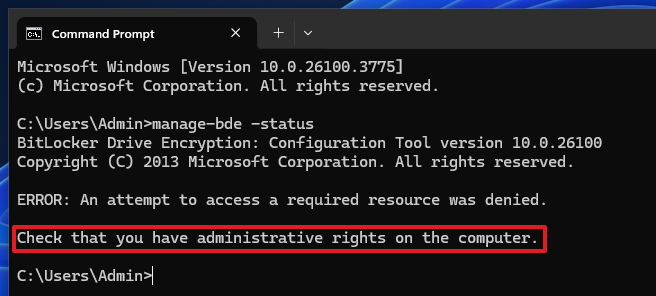 Running
 manage-bde as a low privilege user
You also have the PowerShell cmdlet Get-BitLockerVolume.
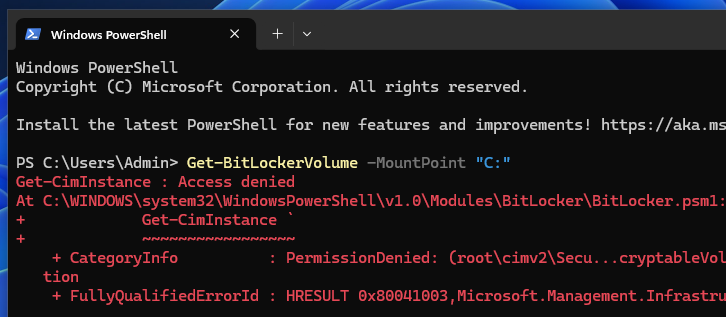 Using PowerShell’s
 Get-BitLockerVolume as a low privilege user
Or you can go down one level and query the WMI object Win32_EncryptableVolume.
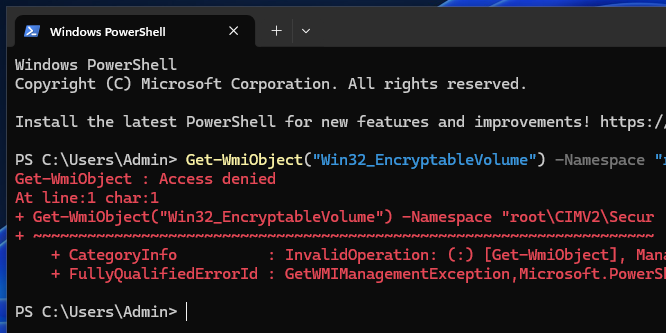 Querying the WMI object
 Win32_EncryptableVolume as a low privilege user
As a low privilege user, if you want to know whether BitLocker is enabled on the system drive, you can check the registry value named BootStatus under the key HKLM\SYSTEM\CurrentControlSet\Control\BitLockerStatus. A value of 1 means that it is enabled, whilst a value of 0 means it is not. Things get more complicated when it comes to determine which authentication mode is used (TPM only, TPM+PIN, etc.).
If you search online how to enable a second factor of authentication (typically a PIN), you’ll likely find that you need to enable and configure the group policy Require Additional Authentication at Startup, and select the option Require Startup PIN With TPM. Since this kind of configuration can be obtained by browsing the registry, I leveraged that information to determine whether a PIN was potentially enforced.
However, this approach has a major flaw. It is indeed very possible that this policy isn’t configured, and yet a BitLocker PIN is set. Conversely, the policy could be configured, without a PIN having been set. In any case, and although this group policy check was never intended to provide an accurate status, the result is likely to be interpreted as a false positive most of the time.
For lack of a better approach, this check has remained flawed by design ever since, until an issue was opened on the repository about this very shortcoming, which motivated me to give this problem another try.
The BitLocker UI as a Starting Point
The starting point for this analysis was a simple observation by @garatc, the author of the GitHub issue. The BitLocker control panel not only displays the status of the protection, but it also shows different options depending on the authentication mechanisms. For instance, if a PIN is set, it shows the link “Change PIN”.
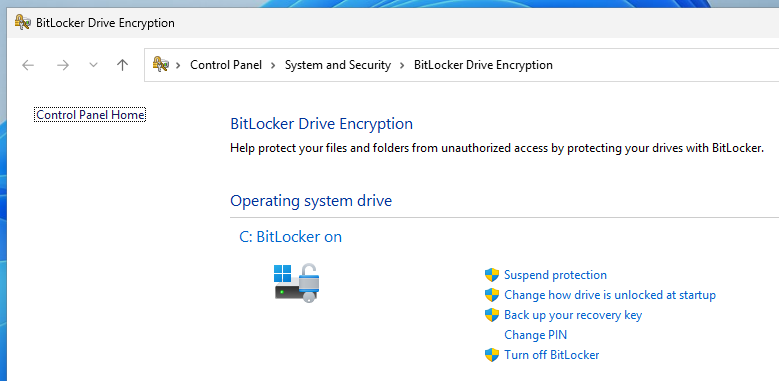 BitLocker Control Panel UI
This UI works the same whether you are logged in as a low privilege user or an administrator, so there must be a way to get this result programmatically. In hindsight, this is obvious, but it’s something I completely overlooked.
The “BitLocker Drive Encryption control panel” is a Control Panel Applet, which seems to be implemented in fvecpl.dll. This particular DLL has two interesting dependencies: bdeui.dll and fveapi.dll.
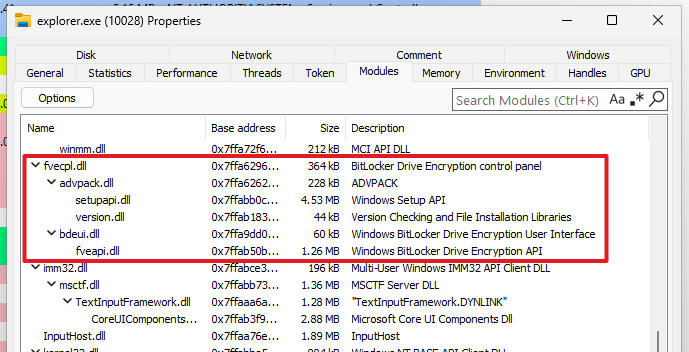 DLLs loaded by the BitLocker control panel applet
The first two DLLs I mentioned contain the implementation of the user interface. The third DLL (fveapi.dll) contains the core API, and is therefore the one I focused on.
Initial Analysis of the FVE API
A quick look at the DLL’s exports shows interesting function names, such as FveOpenVolumeW and FveOpenVolumeExW.
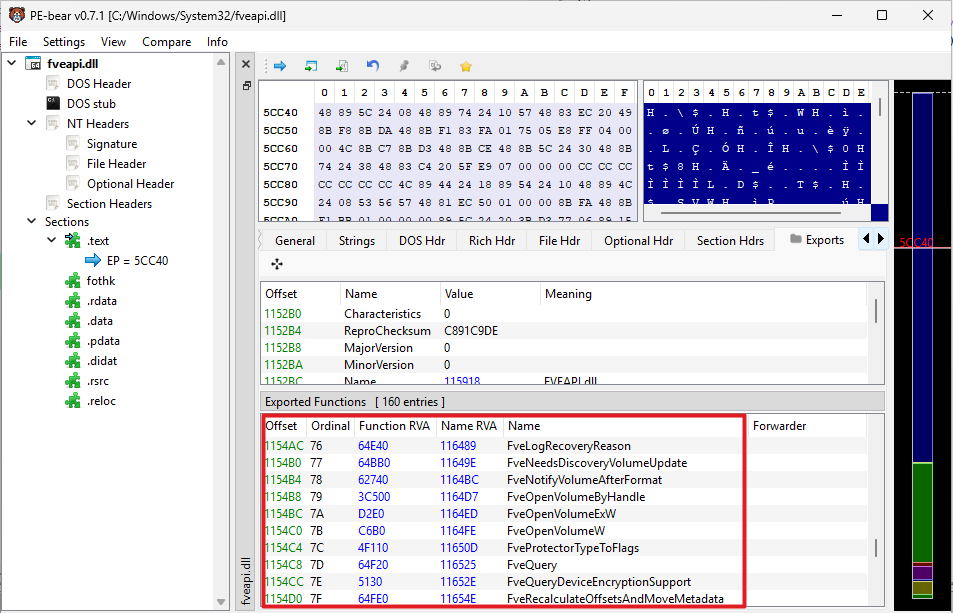 Functions exported by
 fveapi.dll
API Monitor is usually my go-to tool to observe Windows API calls. However, since this API is not publicly documented, it is not as useful. That being said, it does have an “External DLL” mode to hook DLLs that don’t have a capture filter defined.
My methodology was as follows:
- Open the Control Panel and get the PID using the Task Manager.
- Start monitoring the process with API Monitor.
- Access the BitLocker applet.
- Observe the FVE API calls.
This approach ensures that all API calls are captured because fveapi.dll is loaded dynamically when the BitLocker UI is accessed.
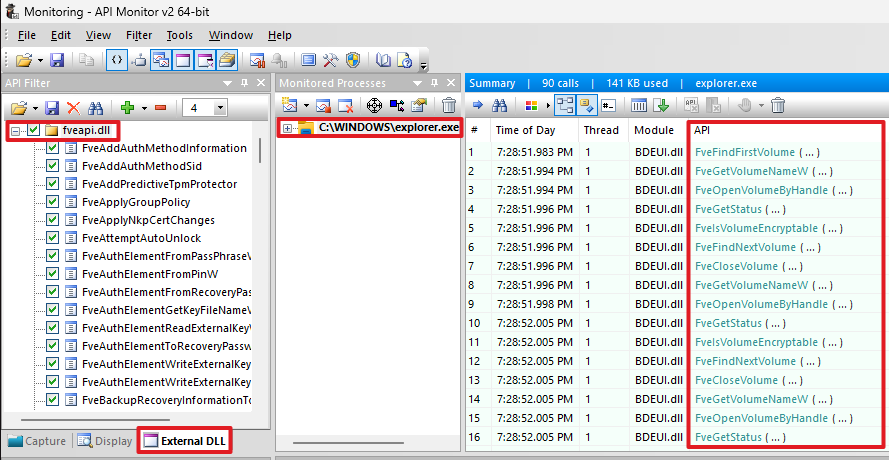 Hooking
 fveapi.dll with API Monitor
The result is already interesting. We can see the following recurring pattern. For each enumerated “volume”, their name and status are retrieved by calling FveGetVolumeNameW and FveGetStatus respectively.
1
2
3
4
5
6
7
FveFindFirstVolume ( ... )
FveGetVolumeNameW ( ... )
FveOpenVolumeByHandle ( ... )
FveGetStatus ( ... )
FveIsVolumeEncryptable ( ... )
FveFindNextVolume ( ... )
FveCloseVolume ( ... )
It’s a good start, but we are missing important information about the arguments obviously. At this stage, it is usually necessary to resort to extensive reverse engineering. However, I made an unusual discovery while doing this research.
I can’t remember how exactly, but at some point, I came across an automated analysis of the bdechangepin.exe executable while I was searching for information about this API. The “Extracted Strings” section in particular caught my attention. It looked like it contained private symbols and structure definitions.
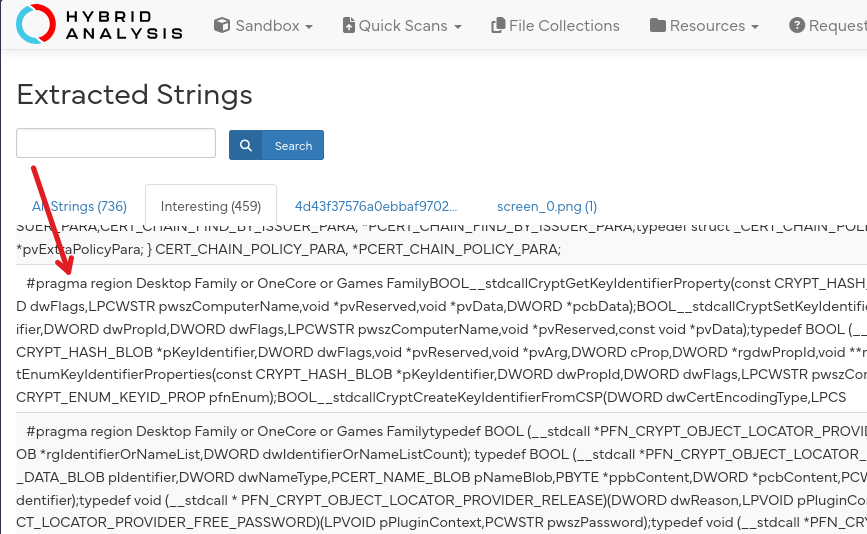 Strings extracted from
 bdechangepin.exe
In reality, and to my surprise, the .rsrc section of the PE contains an XML document, which itself contains a huge header file of more than 7000 lines. In there, you can find private structures such as _FVE_STATUS_V8 or _FVE_FIND_DATA_V1, as well as private function prototypes. I have no idea how and why this information ended up in there.
1
2
3
4
5
6
7
8
9
10
11
12
13
14
15
16
17
18
19
20
21
22
23
24
25
26
27
28
29
30
31
32
33
34
35
36
37
38
39
40
41
42
43
44
45
46
47
//...
typedef struct _FVE_STATUS_V8 {
    ULONG  StructureSize;
    ULONG  StructureVersion;
    USHORT FveVersion;
    ULONG  Flags;
    double ConvertedPercent;
    HRESULT LastConvertStatus;
    // ...
} FVE_STATUS_V8, * PFVE_STATUS_V8;
typedef const FVE_STATUS_V8* PCFVE_STATUS_V8;
// ...
NTSYSAPI
HRESULT
NTAPI
FveGetStatus(
    HANDLE FveVolumeHandle,
    PFVE_STATUS_V8 Status
);
// ...
typedef struct _FVE_FIND_DATA_V1 {
    ULONG FveFindVersion;
    FVE_DEVICE_TYPE DevType;
} FVE_FIND_DATA_V1, * PFVE_FIND_DATA_V1;
NTSYSAPI
HRESULT
NTAPI
FveFindFirstVolume(
    PHANDLE FveFindHandle,
    PFVE_FIND_DATA_V1 FindData
);
NTSYSAPI
HRESULT
NTAPI
FveFindNextVolume(
    HANDLE FveFindHandle,
    PFVE_FIND_DATA_V1 FindData
);
NTSYSAPI
HRESULT
NTAPI
FveGetVolumeNameW(
    HANDLE FveHandle,
    PULONG VolumeNameBufferCchLen,
    LPWSTR VolumeName
);
// ...
As far as I can tell, the information contained in this header file is not up to date. According to the current PDB of fveapi.dll, FveGetStatus uses the structure _FVE_STATUS_V9, whilst this file defines _FVE_STATUS_V8. Nonetheless, that’s largely sufficient for our purpose, and it’s a huge boost for the analysis.
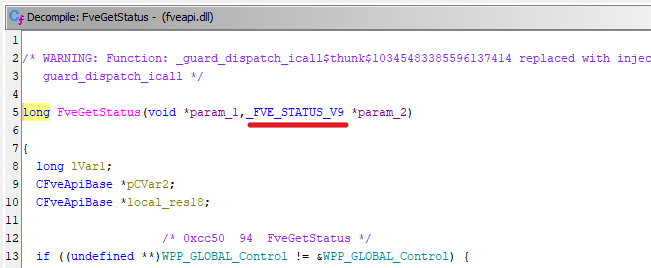 Prototype of
 FveGetStatus (version 10.0.26100.3775)
Diving Deeper into the FVE API
Now that we have the private structure and function definitions, we can define a custom “Capture Filter” for API Monitor. This is something I had never done before, so it was a good opportunity to learn.
In API Monitor, “Capture Filters” are XML documents that describe which modules and DLL exports are hooked, and how to interpret the arguments passed to each function. The built-in filters can be found in the API folder of the application’s install directory.
I took inspiration from the existing filters to write my own, which is organized as follows. First, the document must start with the <ApiMonitor> tag. Then, you can import existing type definitions with <Include>, which is particularly convenient to include well-known Windows types in this case. Next comes the definition of the module. The <Category> tag, which I chose to insert first, is used to organize the APIs in the left panel. I prefixed it with 00 ... for convenience, to make sure it appears first in the list. Finally, I added the type definitions for the few API calls I observed previously.
1
2
3
4
5
6
7
8
9
10
11
12
13
14
15
16
17
18
19
20
21
22
23
24
25
26
27
28
29
30
31
32
33
34
35
36
37
38
39
40
41
42
43
44
45
46
47
48
49
50
51
52
53
54
<ApiMonitor>
    <Include Filename="Headers\windows.h.xml" />

    <Module Name="fveapi.dll" CallingConvention="STDCALL">

        <Category Name="00 Custom/FveApi" />

        <!-- Types -->
        <Variable Name="BCRYPT_KEY_HANDLE" Type="Alias" Base="PVOID" />
        <!-- ... -->

        <!-- Arrays -->
        <Variable Name="USHORT [8]" Type="Array" Base="USHORT" Count="8" />
        <!-- ... -->

        <!-- Enums -->
        <Variable Name="FVE_DEVICE_TYPE" Type="Alias" Base="int">
            <Enum>
                <Set Name="FVE_DEVICE_UNKNOWN" Value="-1" />
                <Set Name="FVE_DEVICE_UNSUPPORTED" Value="0" />
                <Set Name="FVE_DEVICE_VOLUME" Value="1" />
                <Set Name="FVE_DEVICE_CSV_VOLUME" Value="2" />
                <Set Name="FVE_DEVICE_MAX" Value="3" />
            </Enum>
        </Variable>
        <Variable
            Name="PFVE_DEVICE_TYPE"
            Type="Pointer"
            Base="FVE_DEVICE_TYPE"
        />
        <!-- ... -->

        <!-- Structures -->
        <Variable Name="FVE_FIND_DATA_V1" Type="Struct">
            <Field Type="ULONG" Name="FveFindVersion" />
            <Field Type="FVE_DEVICE_TYPE" Name="DevType" />
        </Variable>
        <Variable
            Name="PFVE_FIND_DATA_V1"
            Type="Pointer"
            Base="FVE_FIND_DATA_V1"
        />
        <!-- ... -->

        <!-- Functions -->
        <Api Name="FveFindFirstVolume">
            <Param Type="PHANDLE" Name="FveFindHandle" />
            <Param Type="PFVE_FIND_DATA_V1" Name="FindData" />
            <Return Type="HRESULT" />
        </Api>
        <!-- ... -->

    </Module>
</ApiMonitor>
Once this was done, I placed the XML file in the API folder, and restarted the tool. I enabled it in the left pane, and started a new capture of the control panel process.
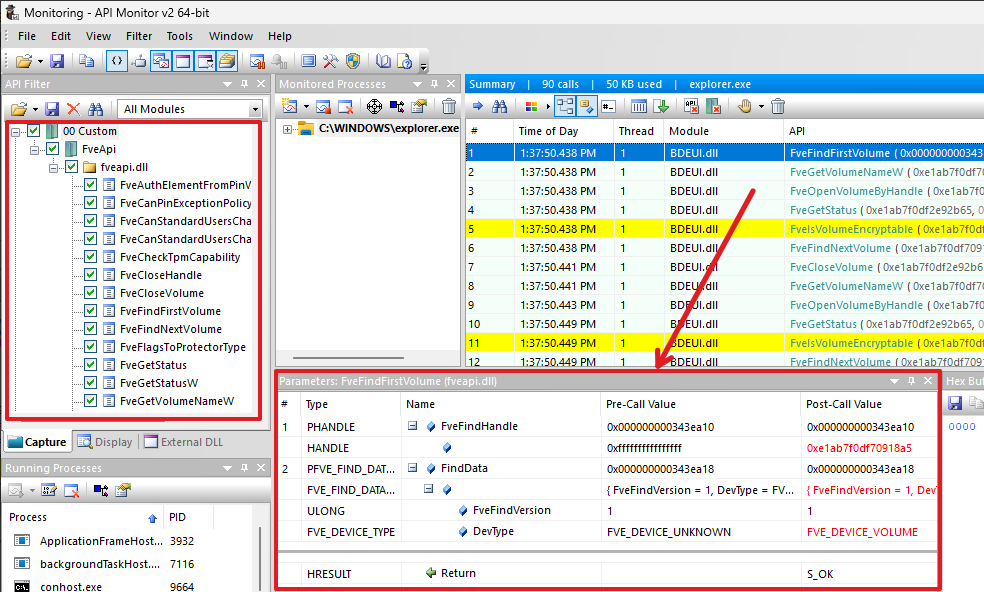 Using a custom capture filter to analyze
 fveapi.dll in API Monitor
It worked perfectly! The “Summary” view now shows a detailed view of the API calls, and you can click through the parameters to analyze the pre-call and post-call values like you would with any other documented API.
This helped me put together a proof-of-concept that replicates the FVE API calls used by the BitLocker control panel applet.
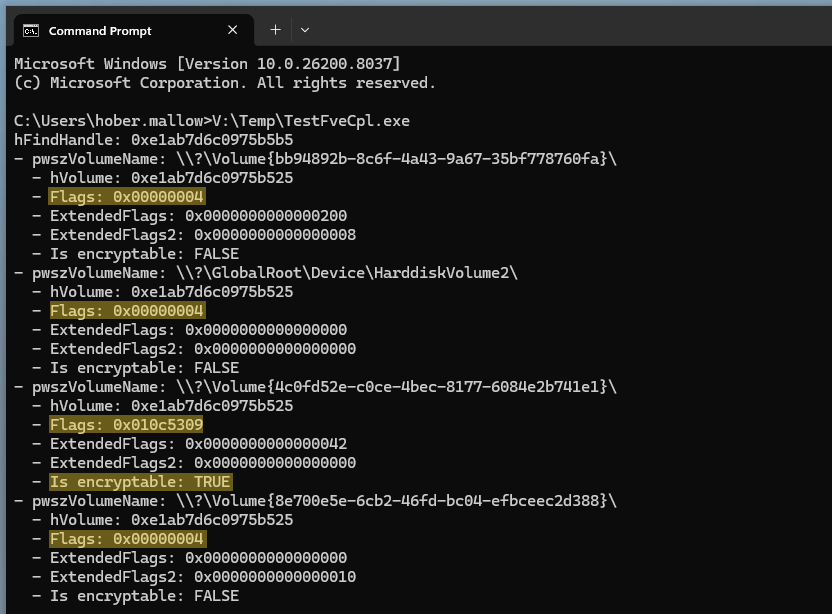 Replica of the BitLocker control panel applet API calls
What it does is enumerate the volumes, and essentially invoke FveGetStatus to get their encryption status, as the API name suggests. The FVE_STATUS structure, populated by this API, contains only a few attributes of interest: Flags, ExtendedFlags, and ExtendedFlags2. We can already see that non-encrypted volumes all have a Flags value of 0x00000004. The only encrypted volume (with TPM+PIN authentication configured in this example) has a Flags value of 0x010c5309.
At this stage, we can therefore reasonably assume that this Flags attribute is a bit mask that contains the information we need. The first thing I did to test this theory was run the PoC on two other machines, with different BitLocker settings, and I observed the following results.
| Configuration | Flags | ExtendedFlags | ExtendedFlags2 |
|---|---|---|---|
| BitLocker not enabled | 0x00004004 | 0x00000000 | 0x00000000 |
| TPM and recovery password | 0x01045309 | 0x0000004a | 0x00000000 |
| TPM+PIN and recovery password | 0x010c5309 | 0x00000042 | 0x00000000 |
The slight difference between the last two Flags values is especially revealing, and could be an indicator that 0x00080000 means “a PIN is set” (because 0x01045309 | 0x00080000 = 0x010c5309).
Next, I took a look at the implementation of FveGetStatus in Ghidra. This API is merely a wrapper for the internal CFveApiBase::GetStatus, which calls SetFlagsBasedOnState and SetExtendedFlagsBasedOnState.
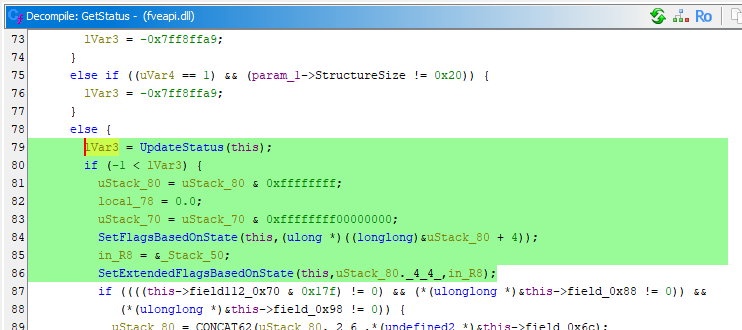 Pseudo source code of
 CFveApiBase::GetStatus
The internal function SetFlagsBasedOnState is where the “magic” happens. As the name suggests, this internal function returns the flags that are eventually set in the FVE_STATUS structure.
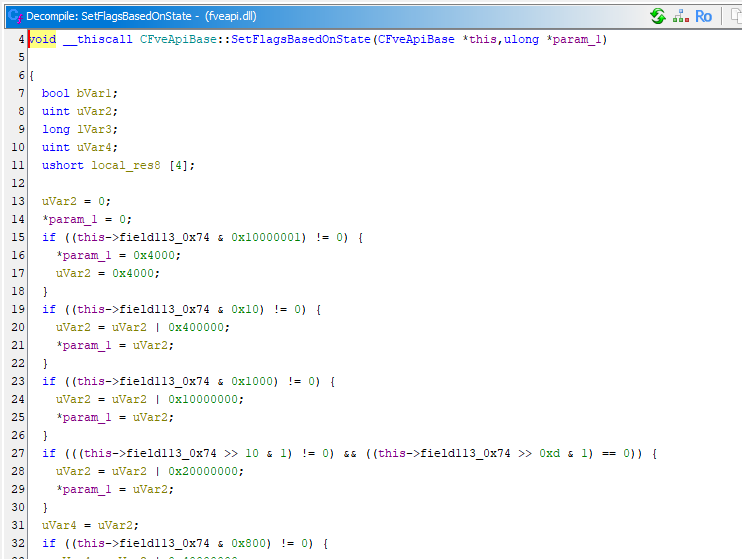 Pseudo source code of
 CFveApiBase::SetFlagsBasedOnState
Unfortunately, the pseudo source code isn’t really helpful. It looks like it sets the flags based on a private attribute of the CFveApiBase class.
However, if we scroll down a bit, we can see several aptly named internal functions which are used to set particular flags based on a boolean return value.
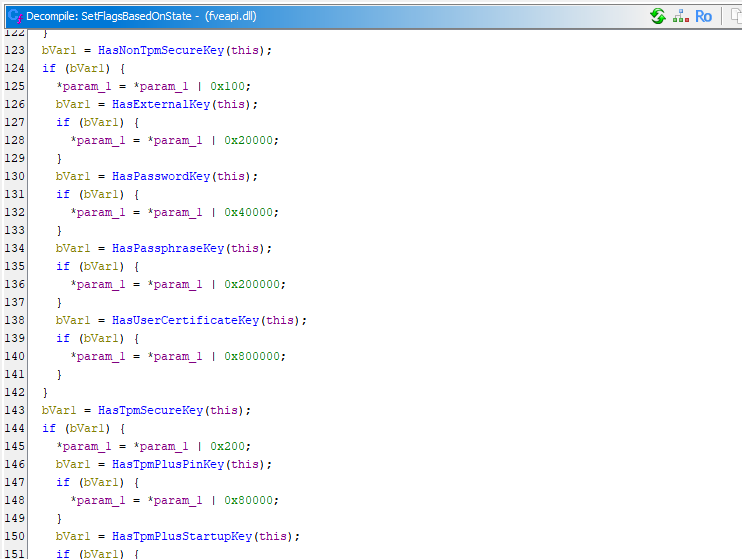 Pseudo source code of
 CFveApiBase::SetFlagsBasedOnState (cont.)
For instance, if HasTpmPlusPinKey() returns TRUE, the flag 0x80000 is set, which confirms my previous guess. To recap, if we break down the Flags value 0x010c5309, here is what we can infer.
1
2
3
4
5
6
7
8
9
10
01 0c 53 09 -> "Flags" value for a typical TPM+PIN configuration
 |  | ||  |__ 0x00000001
 |  | ||  |__ 0x00000008
 |  | ||_____ 0x00000100 -> HasNonTpmSecureKey (?)
 |  | ||_____ 0x00000200 -> HasTpmSecureKey (TPM)
 |  | |______ 0x00001000
 |  | |______ 0x00004000
 |  |________ 0x00040000 -> HasPasswordKey (recovery password?)
 |  |________ 0x00080000 -> HasTpmPlusPinKey (TPM+PIN)
 |___________ 0x01000000
This result is conclusive, but incomplete. So, I used the built-in manage-bde tool to add and remove protectors to see how they affect the flags. Below is a table that recaps my observations.
| Authentication Method | Flags |
|---|---|
| Numerical password (recovery) | HasNonTpmSecureKey + HasPasswordKey |
| TPM | HasTpmSecureKey |
| TPM + PIN | HasTpmSecureKey + HasTpmPlusPinKey |
| TPM + Startup key | HasTpmSecureKey + HasTpmPlusStartupKey |
| External key | HasNonTpmSecureKey + HexExternalKey |
These combinations could have been guessed from the function names, but at least the observations removed any doubts about their interpretation. The only two flags I could not observe were HasPassphraseKey and HasCertificateKey. These two flags are indeed irrelevant here because the “passphrase” and “certificate” protectors are intended to be used on data drives only according to the documentation.
Conclusion
I made the capture filter and my proof-of-concept both publicly available on GitHub. I won’t upload the header file to avoid a potential DMCA strike, even though it is already publicly available…
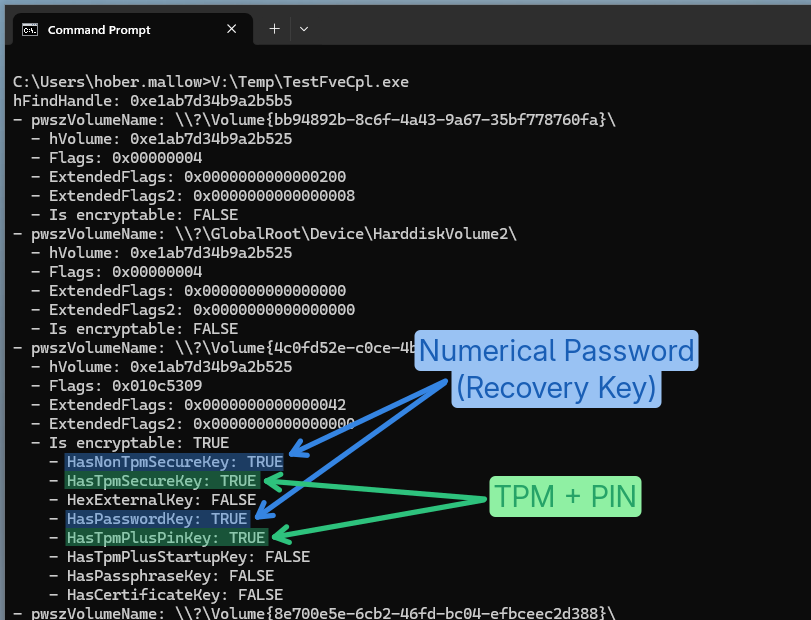 Proof-of-concept showing BitLocker authentication flags
In conclusion, although the built-in BitLocker tools require administrative privileges, these restrictions are not necessarily enforced on the backend API. However, this analysis only scratched the surface. There would be more work to do to understand how the information about the volumes is retrieved at a lower level for example, and who knows, there might be an attack surface for local privilege escalation there.